 INCISOR®
The short version
Incisor® accepts one command at a time from the command line, whether it's open or closed. You run the Incisor® executable with --cli and one JSON object. It waits until the command is done, prints one JSON answer on stdout, and exits with a code.
The command line isn't part of the Incisor® API documentation, so this page is the full reference for it. There are seven commands:
| Command | Does | Works with Incisor® closed | Default timeout |
|---|---|---|---|
getSessionInfo | Returns the application settings and the open projects. | Yes | 15 s |
publish | Publishes a project with a named configuration. | Yes | 1800 s |
openProject | Opens a project in a tab. | Yes, and Incisor® stays open | 60 s |
focusTab | Brings a project's tab and the window forward. | No | 10 s |
getInspectorScreenShot | Saves an image of a project's whole tab. | No | 30 s |
getProjectScreenShot | Saves an image of a running project. | No | 30 s |
runNceScript | Runs a script inside an open project's inspector. | No | 30 s |
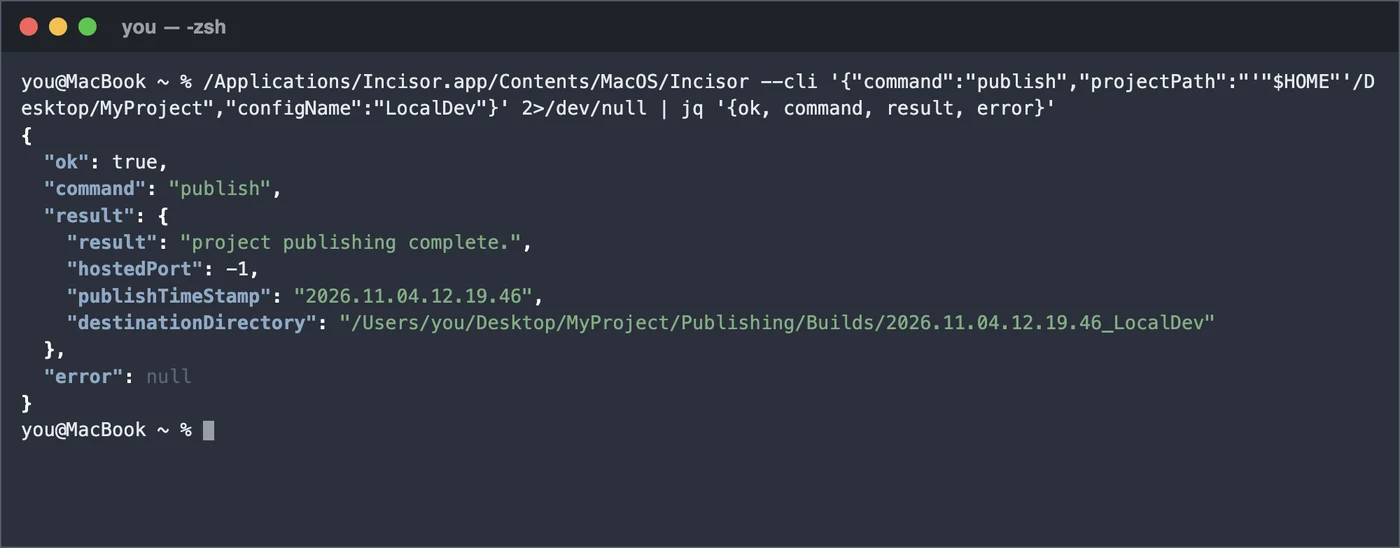
publish command on a Mac and its answer, filtered with jq. ok is true, and result holds the publish summary.Before you start
Incisor® 2026.11.05.00.00.00 or later
The command line isn't available in earlier versions. Use Incisor® menu → Check for Updates to update.
A logged-in user
publish and openProject need a verified user, so Incisor® must have been logged in and its key must still be valid.
Know the risk. Once the command line is on, any program on your computer, including programs run by other user accounts, can issue these commands. A script can do anything the open project can do. Turn it on only on a machine you trust.
1 · Turn on the command line
The command line is off by default. It's controlled by one application setting, enableCLI, in the security group.
- Open Incisor® menu → Application Settings...
- In the security group, turn on
enableCLI.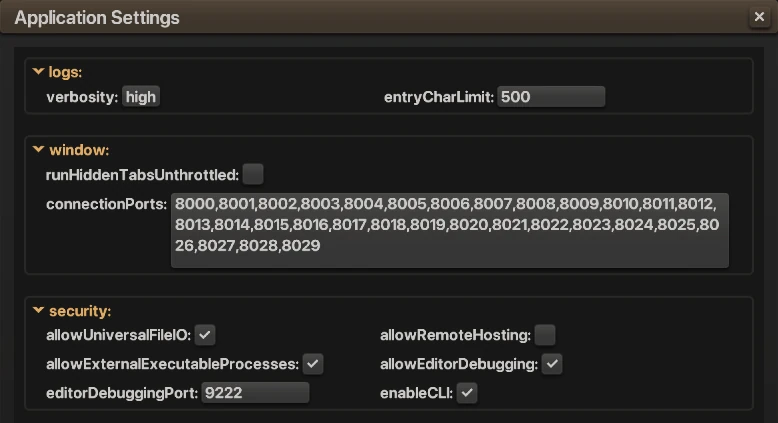
enableCLIis in the security group, belowallowEditorDebugging. - Confirm the prompt, which reads: "By enabling this feature, you agree to assume responsibility for all of the associated risks. Do you wish to continue?"
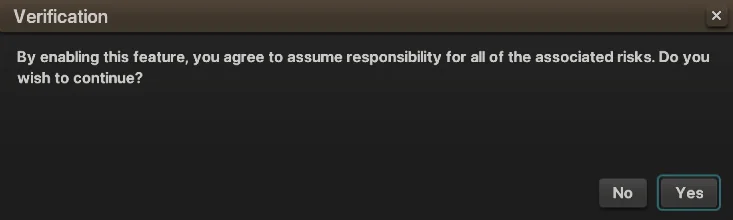
The setting takes effect immediately, with no restart. Every command is recorded in the Incisor® log and in the shell log when it's received, whether or not it's then allowed to run.
2 · Run a command
Run the Incisor® executable with one of these flags:
| Flag | Does |
|---|---|
--cli <json> | Runs the command given as one JSON object. |
--cli-file <path> | Runs the command held in a file. Best for long scripts, and on Windows. |
--output <path> | Also writes the answer to a file. |
The JSON object always has a command name, plus that command's arguments. Any command can also take timeoutSeconds.
Running a command on a Mac
The default location is /Applications/Incisor.app/Contents/MacOS/Incisor. Incisor® can be dragged anywhere, so if yours isn't in Applications, use the same path inside your own copy of Incisor.app. Run this executable directly, because open starts a second app instead.
/Applications/Incisor.app/Contents/MacOS/Incisor --cli '{"command":"getSessionInfo"}'Running a command on Windows
The default location is %LOCALAPPDATA%\Programs\Incisor\Crimson\Incisor.exe. The Crimson folder is named after the version set. The installer also lets you pick another folder. If you did, right-click the Incisor® Crimson Start Menu shortcut and choose Open file location.
Put the command in a file and read the answer from --output, since a desktop program's stdout isn't shown by every terminal.
{ "command": "getSessionInfo" }"%LOCALAPPDATA%\Programs\Incisor\Crimson\Incisor.exe" --cli-file command.json --output answer.json& "$env:LOCALAPPDATA\Programs\Incisor\Crimson\Incisor.exe" --cli-file command.json --output answer.jsonBackslashes in a JSON file must be doubled, as in "C:\\Users\\you\\Desktop\\MyProject".
Project paths
projectPath is the folder of the project. Relative projectPath and outputPath values work, and are taken from the folder the command was issued in.
A ~ inside single quotes isn't expanded by the shell, so build a home-based path from $HOME instead. The quotes close around "$HOME" and then reopen:
/Applications/Incisor.app/Contents/MacOS/Incisor --cli '{"command":"publish","projectPath":"'"$HOME"'/Desktop/MyProject","configName":"LocalDev"}'3 · Read the answer
Every command answers with one JSON object. The answer is only what's on stdout or in the --output file. Ignore stderr, which carries a DevTools listening on ws://127.0.0.1:<port>/... line whenever the editor debugging port is on.
| Field | Holds |
|---|---|
docFormatVersion | The version of this answer format, currently 1. |
ok | true if the command worked, false if it failed. |
command | The name of the command. |
result | What the command returned. Only present when ok is true. |
error | An object with code and message. Only present when ok is false. |
logs | Lines logged while the command ran. These can include lines from other activity. |
{ "docFormatVersion": 1, "ok": true, "command": "focusTab", "result": { "focused": true }, "logs": [ "..." ] }{ "docFormatVersion": 1, "ok": false, "command": "focusTab", "error": { "code": "notOpen", "message": "The project is not open: /Users/you/Desktop/MyProject" }, "logs": [ "..." ] }Check error, not just result. On a failure, error replaces result, so a filter such as jq '{ok, command, result}' hides the reason. Include error in the filter.
A good everyday pattern on a Mac drops stderr and keeps the fields that matter:
/Applications/Incisor.app/Contents/MacOS/Incisor --cli '{"command":"focusTab","projectPath":"'"$HOME"'/Desktop/MyProject"}' 2>/dev/null | jq '{ok, command, result, error}'An --output file is written whole, so a script never reads half of an answer.
Exit codes
| Code | Meaning | Error codes |
|---|---|---|
0 | The command worked. | None |
1 | The command failed. | Every code not listed in the rows below, including timeout |
2 | The command line is turned off. | cliDisabled |
3 | Incisor® gave no answer or wasn't ready. | noResponse, unavailable, notReady |
Error codes
When ok is false, error.code is one of these, and error.message gives the detail.
| Code | Exit | Meaning | What to do |
|---|---|---|---|
cliDisabled | 2 | enableCLI is off. | Turn it on in Application Settings. |
badCommand | 1 | Invalid JSON, an unreadable command file, or no command name. | Fix the JSON or the file path. |
unknownCommand | 1 | The name isn't one of the seven commands. | Check the spelling, which is case-sensitive. |
missingArgument | 1 | A required argument is missing or empty. | error.message names it. |
notOpen | 1 | The project isn't open, or Incisor® is closed. | Run openProject first. |
notRunning | 1 | getProjectScreenShot was run on a project that's open but not running. | Run the project, then try again. |
alreadyOpen | 1 | openProject was run on an open project. | Carry on, since the project is ready. Use focusTab to bring it forward. |
notAProject | 1 | publish was given a path that isn't a valid project. | Point projectPath at the project's folder. |
notVerified | 1 | The user isn't verified. | Open Incisor® and log in. |
projectBusy | 1 | A publish of this project is underway, or assets were still processing when time ran out. | Wait, then try again, with a longer timeoutSeconds if needed. |
publishFailed | 1 | The publish reported an error. | Read error.message. |
openFailed | 1 | The project couldn't be opened. | Read error.message. |
scriptError | 1 | A runNceScript script failed. | Read error.message and fix the script. |
actionFailed | 1 | The window couldn't focus the tab or take the screenshot. | Read error.message. |
timeout | 1 | focusTab, getInspectorScreenShot, getProjectScreenShot or runNceScript ran out of time. | It may still finish. Check before running it again. |
noResponse | 3 | No answer arrived within timeoutSeconds plus 20 seconds. | It may still finish. Check before running it again. |
unavailable | 3 | Incisor® isn't running, or stopped before the command finished. | Try again. |
notReady | 3 | Incisor® didn't finish starting up within 120 seconds. | Try again. |
internalError | 1 | The command failed unexpectedly. | Read error.message and logs. |
Timeouts
Each command has its own time limit in seconds, shown in the table at the top of this page. Add timeoutSeconds to any command to change it:
{ "command": "runNceScript", "projectPath": "/Users/you/Desktop/MyProject", "script": "return 6 * 7;", "timeoutSeconds": 120 }A command that times out may still finish in Incisor®. Before you run it again, check whether the work was done.
Commands
Every command that names a project takes projectPath, the folder of the project. All examples use /Users/you/Desktop/MyProject. In the longer answers, "..." marks what was cut.
getSessionInfo
Returns the application settings and the projects that are open.
| Detail | Value |
|---|---|
| Arguments | None |
| Needs | Nothing. Works with Incisor® open or closed. |
| Default timeout | 15 seconds |
| Result | applicationSettings and openProjects |
| Each open project | projectPath, projectName, isRunning, projectSettings |
This answer is long. It holds the full projectSettings of every open project, about 450 lines each, so filter it before putting it in a prompt. See Common workflows below for a filter.
{ "command": "getSessionInfo" }{
"docFormatVersion": 1,
"ok": true,
"command": "getSessionInfo",
"result": {
"applicationSettings": {
"docFormatVersion": 0,
"incisorVersion": "2026.11.04.11.13.35",
"language": "en",
"logs": { "verbosity": "high", "entryCharLimit": 500 },
"maxUndoStates": 500,
"connectionPorts": [8000, 8001, 8002, "..."],
"colorTheme": "Default",
"customColorThemes": [{ "name": "...", "colors": "..." }, "..."],
"maxThreads": 8,
"refreshOnCodeChange": true,
"runProjectOnOpen": false,
"stopProjectOnException": true,
"security": {
"allowUniversalFileIO": true,
"allowExternalExecutableProcesses": true,
"allowEditorDebugging": true,
"editorDebuggingPort": 9222,
"enableCLI": true,
"allowRemoteHosting": false
},
"...": "..."
},
"openProjects": [
{
"projectPath": "/Users/you/Desktop/MyProject",
"projectName": "MyProject",
"isRunning": false,
"projectSettings": {
"publicProjectName": "MyProject",
"projectCodeName": "MyProject",
"latestIncisorVersionSetUsed": "Crimson",
"latestIncisorVersionUsed": "2026.11.04.11.13.35",
"usingTypescript": true,
"devModeConfiguration": "LocalDev",
"configurations": {
"LocalDev": { "publishIndexFile": true, "...": "..." },
"EgmSingleScreenPublish": "...",
"EgmDualScreenPublish": "..."
},
"screenShotDestination": "ScreenShots",
"...": "..."
}
}
]
},
"logs": [
"74 CLI: Command line command received: {\"command\":\"getSessionInfo\",\"timeoutSeconds\":15}",
"75 CLI: Command line command 'getSessionInfo' succeeded."
]
}The names under configurations are the values publish accepts for configName.
publish
Publishes the project with the named configuration. It waits for any asset processing that's already underway.
| Detail | Value |
|---|---|
| Arguments | projectPath, configName |
| Needs | A verified user. Works with Incisor® open or closed, and with the project open or not. |
| Default timeout | 1800 seconds |
| Result | result, hostedPort, publishTimeStamp, destinationDirectory |
| Errors | missingArgument, notVerified, notAProject, projectBusy, publishFailed, noResponse |
In the result, hostedPort is -1 when nothing is hosted, and destinationDirectory is the folder holding the published build.
{ "command": "publish", "projectPath": "/Users/you/Desktop/MyProject", "configName": "LocalDev" }{
"docFormatVersion": 1,
"ok": true,
"command": "publish",
"result": {
"result": "project publishing complete.",
"hostedPort": -1,
"publishTimeStamp": "2026.11.04.11.51.42",
"destinationDirectory": "/Users/you/Desktop/MyProject/Publishing/Builds/2026.11.04.11.51.42_LocalDev"
},
"logs": [
"76 CLI: Command line command received: {\"command\":\"publish\",\"projectPath\":\"/Users/you/Desktop/MyProject\",\"configName\":\"LocalDev\",\"timeoutSeconds\":1800}",
"...",
"101 CLI: Command line command 'publish' succeeded."
]
}If the project wasn't open, publish opens it without a tab, doesn't add it to your recent projects, and closes it again afterward.
publish skips two things. The prePublish and postPublish events that extensions listen for don't fire, because they belong to the inspector, and the published project isn't hosted. If you need the events, see Publishing with events below.
openProject
Opens the project in a tab, starting Incisor® if it's closed.
| Detail | Value |
|---|---|
| Arguments | projectPath |
| Needs | A verified user. The project must not already be open. |
| Default timeout | 60 seconds |
| Result | projectPath, pageUrl |
| Errors | missingArgument, notVerified, alreadyOpen, openFailed, noResponse |
{ "command": "openProject", "projectPath": "/Users/you/Desktop/MyProject" }focusTab
Brings the project's tab and the window forward.
| Detail | Value |
|---|---|
| Arguments | projectPath |
| Needs | Incisor® open, and the project open. |
| Default timeout | 10 seconds |
| Result | focused, which is true |
| Errors | missingArgument, notOpen, actionFailed, timeout |
{ "command": "focusTab", "projectPath": "/Users/you/Desktop/MyProject" }getInspectorScreenShot
Focuses the project's tab and saves an image of the whole tab as a PNG.
| Detail | Value |
|---|---|
| Arguments | projectPath, and optionally outputPath |
| Needs | Incisor® open, and the project open. |
| Default timeout | 30 seconds |
| Result | path, width, height |
| Errors | missingArgument, notOpen, actionFailed, timeout |
With no outputPath, the image goes in a temporary folder. Read path in the result to find it.
{ "command": "getInspectorScreenShot", "projectPath": "/Users/you/Desktop/MyProject", "outputPath": "/Users/you/Desktop/inspector.png" }getProjectScreenShot
Brings the project's tab and the window forward, then saves an image of the project's main render target as a PNG.
| Detail | Value |
|---|---|
| Arguments | projectPath, and optionally outputPath |
| Needs | Incisor® open, and the project open and running. |
| Default timeout | 30 seconds |
| Result | path, which is absolute, plus width and height |
| Errors | missingArgument, notOpen, notRunning, actionFailed, scriptError, timeout |
With no outputPath, the image goes to the folder set by screenShotDestination in Project Settings, which is ScreenShots in the example above. An outputPath outside the project's folders needs allowUniversalFileIO, since the project's own file rules apply.
{ "command": "getProjectScreenShot", "projectPath": "/Users/you/Desktop/MyProject" }runNceScript
Runs a script inside the open project's inspector, with nce available as it is in extensions. The script may use await, and may return a value.
| Detail | Value |
|---|---|
| Arguments | projectPath, script |
| Needs | Incisor® open, and the project open. |
| Default timeout | 30 seconds. Raise it for anything slow. |
| Result | value if the script returns a value. Otherwise result is empty. |
| Errors | missingArgument, notOpen, scriptError, timeout |
ncandpraren't available, the same as in extensions. Those two names are reserved, so a script can't declare variables calledncorpreither.- To reach the running project, use
nce.projectNC(the project'snc) andnce.projectPR(the project'spr). - The script is limited by the same settings that limit extensions, such as
allowUniversalFileIOandallowExternalExecutableProcesses. - Inside JSON, a script's double quotes must be written
\"and its line breaks\n, so--cli-fileis easier for long scripts.
{ "command": "runNceScript", "projectPath": "/Users/you/Desktop/MyProject", "script": "return 6 * 7;" }{ "docFormatVersion": 1, "ok": true, "command": "runNceScript", "result": { "value": 42 }, "logs": [ "..." ] }{ "docFormatVersion": 1, "ok": true, "command": "runNceScript", "result": { }, "logs": [ "..." ] }Publishing with events
To publish an open project and fire the prePublish and postPublish events, use runNceScript and trigger them around nce.publishing.publishProject, which is what the inspector does itself. Replace "Web" with the name of your configuration.
const info = { configurationName: "Web", proceedWithPublishing: true, hostPublishedProject: false };
await nce.appEvents.prePublish.asyncTrigger(info);
let summary;
if(info.proceedWithPublishing)
{
    const response = await nce.publishing.publishProject(info.configurationName, info.hostPublishedProject);
    summary = response.payload;
    await nce.appEvents.postPublish.asyncTrigger({ configurationName: info.configurationName, publishTimeStamp: summary.publishTimeStamp, destinationDirectory: summary.destinationDirectory, hostedPort: summary.hostedPort });
}
return summary;- Give it a long
timeoutSeconds. The default for a script is only 30 seconds. - Keep the
proceedWithPublishingcheck. AprePublishcallback can set it to false to stop the publish. The script then returns nothing, soresultis empty. - Read the summary from
result.value. It holds the same fields as thepublishresult.
Here's the same script as a complete command, ready for --cli-file:
{
  "command": "runNceScript",
  "projectPath": "/Users/you/Desktop/MyProject",
  "timeoutSeconds": 1800,
  "script": "const info = { configurationName: \"Web\", proceedWithPublishing: true, hostPublishedProject: false };\nawait nce.appEvents.prePublish.asyncTrigger(info);\nlet summary;\nif(info.proceedWithPublishing)\n{\n    const response = await nce.publishing.publishProject(info.configurationName, info.hostPublishedProject);\n    summary = response.payload;\n    await nce.appEvents.postPublish.asyncTrigger({ configurationName: info.configurationName, publishTimeStamp: summary.publishTimeStamp, destinationDirectory: summary.destinationDirectory, hostedPort: summary.hostedPort });\n}\nreturn summary;"
}
Screenshots from a script
For a plain image of a running project, getProjectScreenShot is the simplest choice, and getInspectorScreenShot captures the whole tab. For camera renderings, or to save screenshots as part of a larger script, use runNceScript with these functions. The project has to be running.
| Function | Saves |
|---|---|
nce.saveProjectScreenShot(path, isPathRelative) | A screenshot of the project. |
nce.saveInspectorScreenShot(path, isPathRelative) | A screenshot of the entire inspector. |
pathis optional. If you leave it out, thescreenShotDestinationvalue in Project Settings is used.isPathRelativeis optional. Set it totrueifpathis relative to the project.- Both functions return the path of the screenshot, so return that from your script to get it back as
value.
{ "command": "runNceScript", "projectPath": "/Users/you/Desktop/MyProject", "script": "return await nce.saveProjectScreenShot(\"ScreenShots/title.png\", true);" }Common workflows
Using the command line from an AI agent or a script
- Run
getSessionInfo, and filter the answer. If it fails withcliDisabled, ask the user to turn onenableCLI. - Find the project in
openProjects. If it's not there, runopenProject. - Run the commands you need, one at a time.
- After each one, check
okand the exit code, and readerroron a failure. - After a
timeoutornoResponse, check whether the work was done before you run the command again.
To have an agent run, see, click, type in and check a project, read the FAQ How can I have AI test my Incisor® project? in FAQs & Tutorials at incisordev.com.
Listing open projects and their configurations
This filter cuts getSessionInfo down to what a prompt needs, and keeps error:
/Applications/Incisor.app/Contents/MacOS/Incisor --cli '{"command":"getSessionInfo"}' 2>/dev/null | jq '{ok, error, projects: [.result.openProjects[]? | {projectPath, isRunning, configurations: (.projectSettings.configurations // {} | keys)}]}'What happens when Incisor® is closed
focusTab,getInspectorScreenShot,getProjectScreenShotandrunNceScriptneed a window, so they fail withnotOpen.openProjectstarts Incisor® and leaves it open.getSessionInfoandpublishstart Incisor® with no window, and it quits when the command is done.
Troubleshooting
bad option: --cli, with exit code 9
The ELECTRON_RUN_AS_NODE environment variable is set, which makes the executable behave as Node instead of Incisor®. VS Code's terminal and anything launched from a program built on Electron set it, including Claude Code in VS Code. Remove it for the command:
env -u ELECTRON_RUN_AS_NODE /Applications/Incisor.app/Contents/MacOS/Incisor --cli '{"command":"getSessionInfo"}'set ELECTRON_RUN_AS_NODE=Remove-Item Env:ELECTRON_RUN_AS_NODEA command hangs, or a second Incisor® starts
The command went to a different copy of Incisor® than the one that's open, for example /Applications/Incisor.app when the running copy is on the Desktop. Always use the executable inside the copy that's running. On a Mac, this shows which one that is:
pgrep -fl "Incisor.app/Contents/MacOS/Incisor"The answer is from the previous command
An old answer file was still at the --output path. Delete it before each command, or use a new file name each time.
cliDisabled, with exit code 2
Turn on enableCLI in the security group of Application Settings.
ok is false and result is missing
That's expected on a failure. Read error instead, and if you're filtering with jq, add error to the filter.
A DevTools line appears in the output
That line is on stderr, and it appears whenever the editor debugging port is on. Ignore it, or drop it with 2>/dev/null on a Mac.
A path starting with ~ isn't found
A ~ inside single quotes isn't expanded. Build the path from $HOME, as shown in Project paths above.
For the nce functions you can call from a script, see the Incisor® documentation at incisordev.com, under Documentation.